If you’ve ever noticed your iPhone slowing down or running out of space, there’s a good chance it's due to accumulated cache. Apps store temporary files to speed things up, but over time, these can pile up and cause sluggish performance.
Luckily, learning how to clear app cache on iPhone is a simple way to get your device back to running smoothly. This guide will walk you through the best methods for clearing cache, freeing up storage, and speeding up your iPhone.
Method 1: Offloading or Deleting Apps (Best for Most Apps)
When it comes to clearing app cache on your iPhone, offloading or deleting apps is one of the most effective methods. Here's how each of these options works:
Offloading Apps
Offloading an app lets you remove the app itself while keeping your data intact. This is especially useful if you want to free up space without losing any important information.
How to Offload an App:
- Open Settings on your iPhone.
- Go to General.
- Tap iPhone Storage.
- Find the app you want to offload.
- Tap on it, then hit Offload App.
- Confirm by selecting Offload App again.
When you offload an app, the icon stays on your home screen, but it’s grayed out. You can easily reinstall it without losing any data.
Deleting Apps
If you’re looking to clear both the app’s cache and data, deleting the app is your best bet. This will completely remove the app and all associated data, giving you a fresh start.
How to Delete an App:
- Open Settings on your iPhone.
- Go to General.
- Tap iPhone Storage.
- Find the app you want to delete.
- Tap the app, then select Delete App.
- Confirm by tapping Delete App again.
Remember, deleting an app will erase both the app and all stored data, like preferences or login info. If you reinstall the app, you'll need to set it up again from scratch.
Tips for Reinstalling Apps After Offloading:
- Offloading apps is a great option for temporarily freeing up space. When you reinstall the app, your data will be restored, and you’ll pick up right where you left off.
- If you offload multiple apps, make sure to keep track of them, so you don’t forget which ones you’ve removed.
Method 2: Clearing Cache for Specific Apps Using In-App Settings
Some apps let you clear cache directly from their settings, making it easier to free up space without touching other data. Popular apps like Spotify and Telegram include an option to clear their cache, so let’s see how it works.
Apps with Built-In Cache-Clearing Options:
- Spotify: Clear offline data like downloaded songs.
- Telegram: Clear cached photos, videos, and other media files.
- Facebook: Clear browsing history and cached data.
How to Clear Cache in Popular Apps:
- Open the app’s Settings.
- Look for options like Storage, Data, or Cache.
- Tap to clear the cache or data.
Not all apps have this option, but when it’s available, it’s a fast and effective way to reduce storage usage.
Why It’s Useful:
- Saves you the trouble of deleting and reinstalling the entire app.
- Keeps your data intact while clearing out the unnecessary temporary files that apps accumulate.
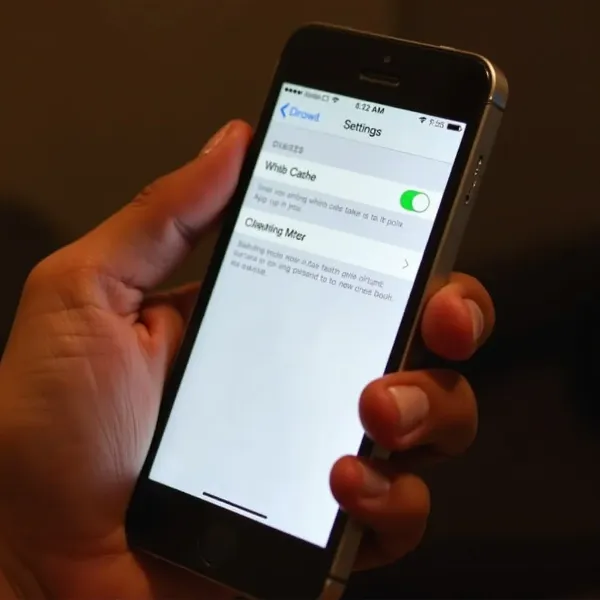
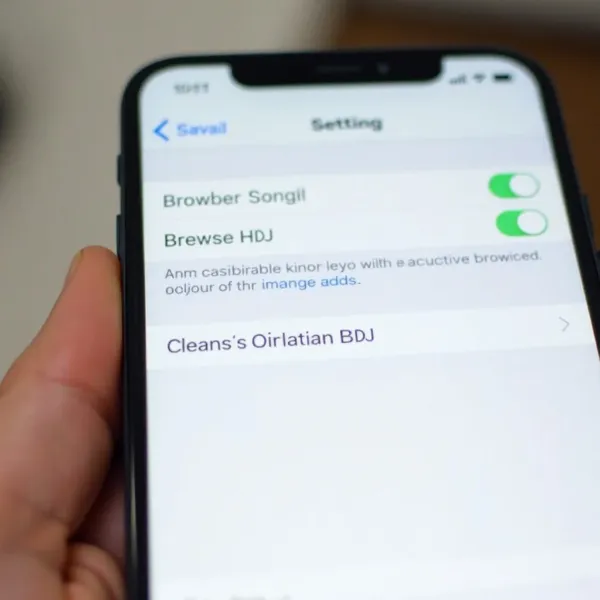
Method 3: Clearing Safari Browser Cache
Your iPhone’s Safari browser stores cache as well, which can slow down your browsing experience. Clearing Safari’s cache is an excellent way to free up space and speed up performance.
How to Clear Safari’s Cache:
- Open Settings on your iPhone.
- Scroll down and select Safari.
- Tap Clear History and Website Data.
- Confirm by tapping Clear History and Data.
This will delete your browsing history, cookies, and cached data from websites, freeing up storage and improving Safari’s performance.
How Clearing Safari’s Cache Helps:
- Frees up space taken up by website data.
- Resolves issues with loading outdated or incorrect content on websites.
- Helps speed up Safari by removing unnecessary data.
Method 4: Restarting Your iPhone to Clear Temporary Data
One of the easiest ways to clear temporary data and refresh your system is by restarting your iPhone. While this won’t erase cache directly, it can help clear temporary files that aren’t needed anymore.
How Restarting Your iPhone Helps:
- Clears temporary files like app caches.
- Refreshes system resources and can improve overall performance.
- It’s a quick and easy method that requires no setup or complicated steps.
How to Restart Your iPhone:
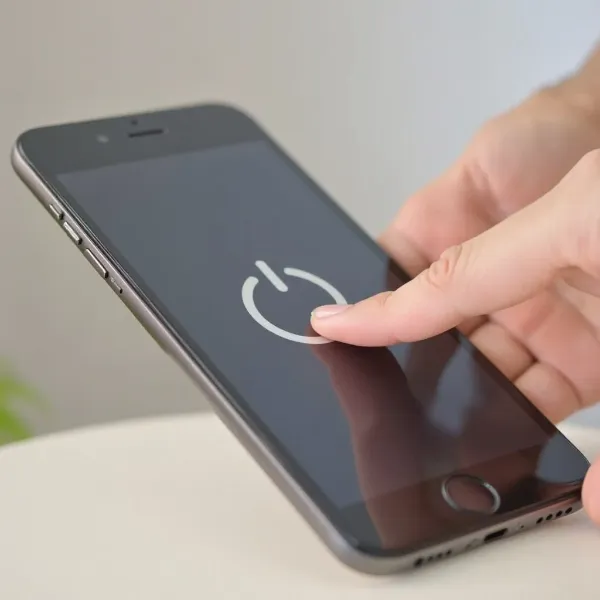
- Press and hold the Power button (or the Volume Up and Side button for newer models).
- Slide to power off when prompted.
- Wait a few seconds, then press and hold the Power button again to turn the device back on.
Sometimes, a simple restart is all it takes to improve your iPhone’s performance and speed.
Tips for Preventing Cache Buildup on iPhone
Preventing cache buildup is just as important as clearing it. Here are a few tips to help keep your iPhone running smoothly without relying too much on clearing cache.
Turn Off Unnecessary Features That Generate Cache
Some settings and features generate a lot of cache, especially when they’re constantly running in the background. Turning them off can reduce cache buildup and improve performance.
Features to Disable:
- Automatic Downloads: Disable automatic downloads for apps and updates in Settings > iTunes & App Store.
- Background App Refresh: Turn off this feature by going to Settings > General > Background App Refresh.
These small changes can make a big difference in how quickly your iPhone runs.
Regularly Clear Browser Cache
It’s easy to forget about clearing browser cache, but it’s a good idea to make it a habit to clear history and cache in Safari every few weeks. This will prevent unnecessary buildup and help improve your browsing experience.
Conclusion
Knowing how to clear app cache on iPhone is a simple yet powerful way to improve your device’s performance and free up storage.
Whether you choose to offload apps, use in-app cache-clearing features, or clear Safari’s browsing data, these steps will help your iPhone run more smoothly. Regularly restarting your device and adjusting settings to prevent cache buildup will also keep things running efficiently. By following these tips, you’ll be able to keep your iPhone in top condition for everyday use.
For more details on clearing cache on your device, check out our guide on how to clear cache on iPad.