Misplacing or accidentally deleting an app on your iPhone can be frustrating, especially if it’s an app you use frequently. But don’t worry, finding deleted apps on iPhone is easier than you might think! In this step-by-step guide, we’ll walk you through several ways to retrieve your lost apps, whether they’re hiding in your App Library, available in the App Store, or safely stored in your backups. Let’s get started!
Why Do Apps Disappear on iPhone?
Before we get into the solutions, let’s first explore why apps might disappear from your iPhone in the first place. Knowing the reasons can help you understand why it happens and how to prevent it.
Common Reasons for Deleted Apps
There are several reasons why apps can disappear from your iPhone:
- Accidental Deletion: It’s easy to accidentally remove apps, especially when cleaning up your device or freeing up space.
- iOS Updates: Sometimes, after an iOS update, apps can be removed or hidden from the home screen.
- Storage Management: Your iPhone may automatically delete apps to free up storage space, especially if you’re running low.
- App Updates: Occasionally, apps may seem to disappear temporarily during updates or reinstallations.
How iOS Handles App Deletions
When an app is deleted from your iPhone, iOS removes the app from the device but doesn’t necessarily erase all the app’s data. Some apps may be stored in the Recently Deleted section of the App Library, which makes them easy to restore. However, deleting an app from this section removes it permanently.
Now that we understand why apps can disappear, let’s take a look at how to find deleted apps on iPhone and restore them.
Method 1: Find Recently Deleted Apps in the App Library
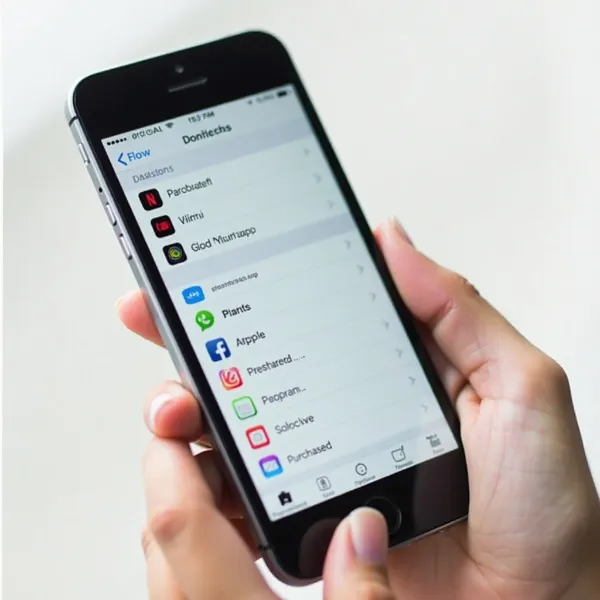
The App Library is a great place to start when trying to recover deleted apps. Even if you’ve removed an app, it might still be available for easy restoration.
Step 1: Accessing the App Library on iPhone
To access the App Library, simply swipe left from your home screen. The App Library organizes your apps into categories and is where you can find any recently deleted apps. It’s also a great place to look if an app seems to have been removed from your home screen but isn’t gone completely.
Step 2: Using the Search Feature to Locate Deleted Apps
Once you’re in the App Library, use the search bar at the top to search for the app by name. If it’s been recently deleted, you’ll find it listed under Recently Deleted. This is where iOS temporarily stores apps before they are permanently removed.
Step 3: Restoring Apps Back to the Home Screen
After finding the deleted app in the App Library, press and hold the app icon. You’ll see an option to Add to Home Screen. Tap it, and your app will be restored to your home screen, ready for use again.
Method 2: Retrieve Deleted Apps Using the App Store
If the app you’re looking for isn’t in the App Library, there’s still a good chance you can redownload it from the App Store.
Step 1: Open the App Store to Your Profile
Launch the App Store and tap on your profile icon located in the top-right corner of the screen. This will bring you to your account page where you can access your past purchases.
Step 2: How to View "Not on this iPhone" List
On your account page, tap Purchased to see a list of apps you’ve downloaded in the past. You’ll notice a section called Not on this iPhone. This list includes apps that you’ve previously downloaded but aren’t currently installed on your device.
Step 3: Redownload and Restore Your Deleted Apps
To restore your deleted app, find it in the Not on this iPhone section and tap the download button (cloud icon) next to it. The app will automatically redownload and appear on your home screen.

Method 3: Restore Deleted Apps Using iCloud Backup
If you’re unable to find your app in the App Store, another option is to restore it from an iCloud backup. This is especially helpful if the app was deleted some time ago and isn’t showing up in recent downloads.
Step-by-Step Guide
- Check for a Backup: First, check if you have an iCloud backup that includes the app. Go to Settings > [Your Name] > iCloud > iCloud Backup, and confirm that a recent backup exists.
- Restore the Backup: If a backup is available, you can restore it by going to Settings > General > Reset > Erase All Content and Settings. After your device resets, choose Restore from iCloud Backup during the setup process.
- Restore Apps: Once the backup is restored, your apps, including the deleted ones, should automatically reappear on your home screen.
Method 4: Restore Deleted Apps From an iTunes/Finder Backup
For users who prefer using a computer, restoring apps from an iTunes or Finder backup is another option.
Step-by-Step Guide
- Check for a Backup: Make sure you have an iTunes or Finder backup that includes the app. Connect your iPhone to your computer and open iTunes (or Finder on macOS Catalina and later).
- Restore Backup: In iTunes or Finder, click on your device and select Restore Backup. Choose the most recent backup that contains the app you want to recover.
- Wait for the Restore: The app should automatically appear once the backup is restored.

Method 5: Using Spotlight Search to Locate Missing Apps
Sometimes, apps may be on your device but just aren’t visible on your home screen. Spotlight Search can help you find them quickly.
How to Access Spotlight Search on iPhone
To access Spotlight Search, swipe down from the middle of your home screen. This will bring up the search bar.
Searching for Deleted Apps Using Keywords
Once the search bar appears, type in the name of the app you’re looking for. If the app is still installed on your iPhone (even if it’s hidden in a folder), it will show up in the search results. Tap on the app to open it directly.
Conclusion
If you’ve been wondering how to find deleted apps on iPhone, now you know it’s easier than ever to recover them! Whether using the App Library, redownloading from the App Store, or restoring from a backup, you have plenty of ways to get your apps back. Just follow the steps outlined in this guide, and you’ll be back to using your favorite apps in no time.
For more iPhone tips, check out how to clear app cache on iPhone.