Call forwarding allows you to redirect incoming calls from one phone number to another. It’s especially helpful when you're busy, traveling, or just want to ensure you don’t miss important calls. On iPhone, this feature is simple to set up and can be customized to forward calls under specific conditions, like when you're busy or out of service.
In this guide, we'll walk you through how to forward calls on iPhone, whether you're using the built-in settings or carrier codes.

How Can You Forward Calls on iPhone?
Forwarding calls on your iPhone is easy and takes just a few steps. Here’s how to do it:
Step 1: Open the Settings App
To start, unlock your iPhone and find the Settings app on your home screen. Tap the icon to open it.
Step 2: Access the Phone Settings
Scroll down the Settings menu until you see Phone. Tap it to open the phone-specific settings.
Step 3: Enable Call Forwarding
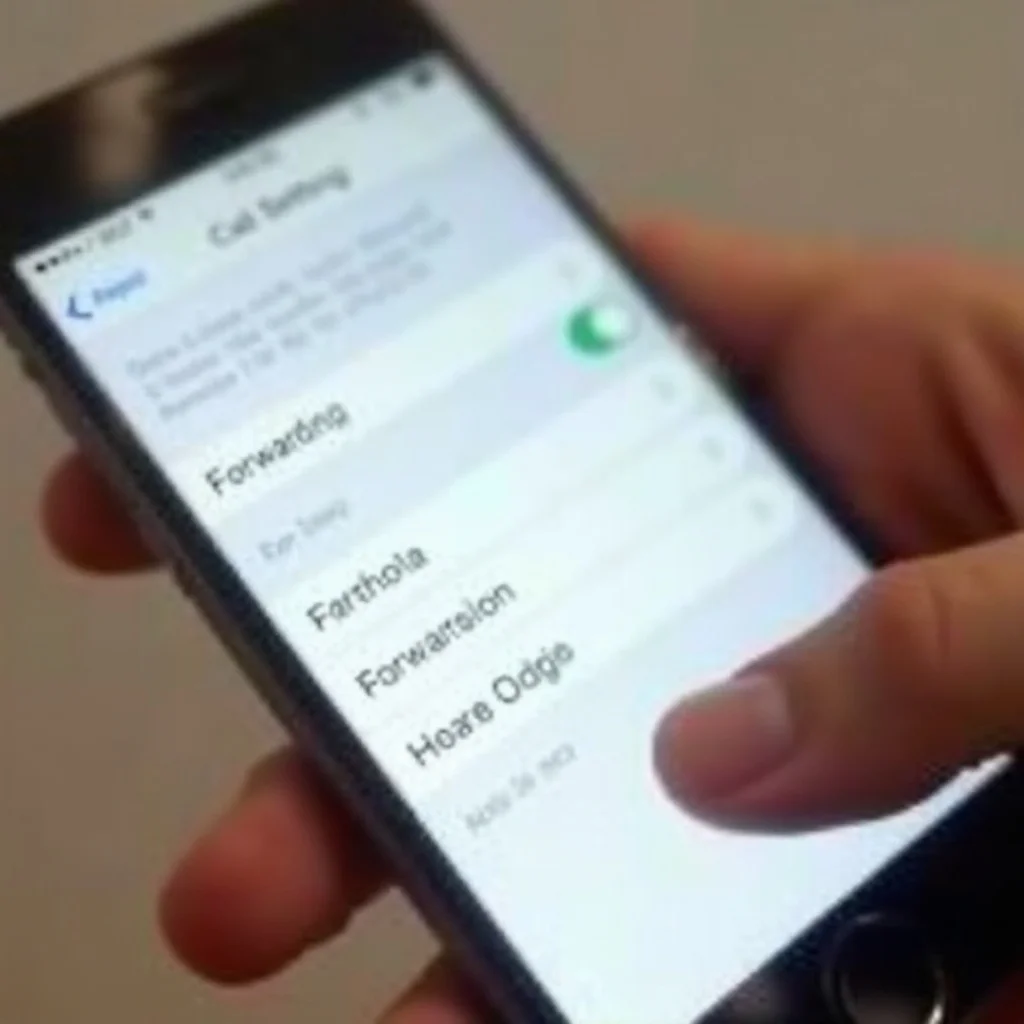
Inside the Phone settings, find and tap on Call Forwarding. This option lets you set up forwarding for all incoming calls.
Step 4: Enter the Forwarding Number
Once you're in the Call Forwarding menu, you'll see a field to enter the number you want calls forwarded to. You can forward calls to any valid phone number, whether it’s another mobile phone or a landline.
Step 5: Confirm the Setup
After entering the forwarding number, toggle the Call Forwarding switch to the "on" position. You’ll see the number you entered, confirming that the forwarding is active. Test it by calling your iPhone from another phone to make sure it's working properly.
How to Call Divert on iPhone in Other Ways?
While the built-in method described above is the most common way to forward calls on iPhone, there are also other options available on how to call forwarding on iPhone, like using carrier codes or setting up conditional forwarding.
Set Up Call Forwarding Using Carrier Codes
If you prefer not to use the settings, you can also set up call forwarding using specific carrier codes. For example:
- Dial **21* followed by the phone number you want calls forwarded to(number may vary by different carriers).
- To cancel call forwarding, dial ##21#.
Carrier codes vary, so it’s a good idea to check with your carrier for any other specific codes they may offer.
Set Up Conditional Call Forwarding (Busy / No Answer / No Service)
In addition to forwarding all calls, iPhone lets you set up conditional forwarding. This means calls will only be forwarded under certain circumstances, such as:
- Forward when busy: Calls are forwarded if you're already on another call.
- Forward when no answer: Calls are forwarded if you don’t answer after a few rings.
- Forward when unreachable: Calls are forwarded if your iPhone has no signal or is turned off.
To enable these options, open the Call Forwarding menu and check with your carrier for the steps to enable these specific conditions.
Special Considerations for iPhone Models
Call forwarding works across most iPhone models, but there are some special things to keep in mind, especially if you have an iPhone with dual SIM functionality.
Call Forwarding on Dual SIM iPhones
If you own a dual SIM iPhone (like the iPhone XS or later), you can forward calls separately for each SIM. This is especially useful if you have both a personal and work line, and you want to forward calls from one line while leaving the other active. Each SIM can have its own call forwarding number set.
Carrier Restrictions and Compatibility
While iPhones support call forwarding, some carriers may have restrictions or charge extra for using this feature. Be sure to check with your carrier to ensure call forwarding is activated on your account and inquire about any additional fees.
How to Disable Call Forwarding on iPhone
If you no longer need call forwarding, it’s easy to disable:
- Go to Settings > Phone.
- Tap Call Forwarding.
- Turn off the toggle to disable forwarding.
- You can also dial ##21# to cancel any active call forwarding directly via carrier codes.
Once disabled, your calls will no longer be forwarded.
Conclusion
Now you know how to forward calls on iPhone, whether you're using the Settings app, carrier codes, or enabling conditional forwarding for specific situations. Setting up call forwarding is a great way to make sure you don’t miss important calls when you're busy or unavailable. Whether you want to forward calls to another number or set up forwarding for specific situations, it’s quick and easy to manage on your iPhone.
If you're wondering how to call forwarding in iPhone works or how to call divert on iPhone, just follow these simple steps, and you’ll be all set to manage your calls with ease.
FAQs
Can I forward my calls to another number on my iPhone?
Yes! You can forward calls to another phone number on your iPhone by going to Settings > Phone > Call Forwarding and entering the desired phone number.
Does *72 forward calls on iPhone?
Yes, *72 is a common carrier code used to activate call forwarding on your iPhone. Just dial *72 followed by the number where you want your calls forwarded. To cancel it, dial *73.
Why isn’t call forwarding working on my iPhone?
If call forwarding isn’t working, make sure it’s enabled in your iPhone settings. You may also need to check with your carrier to make sure the feature is active and that there are no restrictions or issues with your account.