Voicemail is one of those features that makes sure you never miss a call when you’re busy or unavailable. Whether you’re setting it up for the first time or tweaking your settings, it’s important to get your voicemail just right.
This guide will walk you through everything you need to know about how to set up voicemail on Samsung phones, from the initial setup to updating your greeting and even turning off visual voicemail. Let’s dive in!
Step-by-Step Guide to Setting Up Voicemail on Your Samsung
Setting up voicemail on your Samsung phone is a breeze. Whether you’re a first-time user or just need to reset your settings, follow these easy steps to get your voicemail working.
Open the Phone App
Start by tapping the green phone icon on your home screen. This is where you’ll access all your calling features, including voicemail. The Phone app is your one-stop shop for everything related to calls on your Samsung.
Access Voicemail
To get to your voicemail, simply press and hold the ‘1’ key on the keypad, or tap the voicemail icon (usually shown as an envelope or tape reel). This will take you directly to your voicemail inbox, where you can start setting things up.
Follow the Prompts to Set Up Voicemail
When you access voicemail for the first time, you’ll be prompted to set up a password or PIN, record your name, and create a personalized greeting. If you’ve already used voicemail before, you’ll likely just need to enter your existing password to access the system. The prompts are easy to follow, so just take your time.
Once you’re done, your voicemail is ready to go! It’s that simple.
How to Change Your Voicemail Message on Samsung
Changing your voicemail greeting is a quick and easy process. Whether you need to update it for a new job or just want to freshen it up, here’s how to change your voicemail message on Samsung.
Update Your Greeting
To change your voicemail greeting, access your voicemail just like before by pressing and holding the ‘1’ key or tapping the voicemail icon. Once you’re in, you’ll hear your current greeting and be prompted to record a new one. Follow the instructions to record your updated greeting.
You can keep it simple, like “Hi, this is [Your Name]. I’m unavailable right now, but please leave a message, and I’ll get back to you as soon as I can.” Or, if you’re using voicemail for business, you can mention your hours or an alternate way to reach you.
Tips for Crafting a Professional Voicemail Message
If you want to sound professional but still approachable, keep your voicemail message short and to the point. You don’t need anything elaborate. A good voicemail greeting might sound like this: “Hi, this is [Your Name]. I’m unable to take your call right now, but please leave a message, and I’ll get back to you as soon as possible.”
If it’s for business, don’t forget to mention your work hours or an alternative way for the caller to get in touch with you.
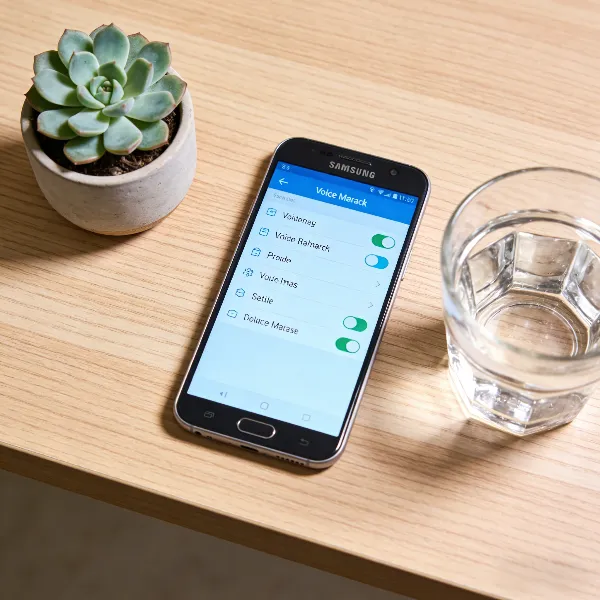
How to Deactivate Visual Voicemail on Samsung
While visual voicemail offers a more modern way to manage your voicemail messages, some people prefer to use the traditional voicemail system. If you want to turn off visual voicemail, follow these simple steps.
Access the Visual Voicemail Settings
To deactivate visual voicemail, open the Phone app and go to the voicemail section. From there, you should see options for voicemail settings. Look for anything labeled “Visual Voicemail.”
Turn Off Visual Voicemail
Once you find the Visual Voicemail settings, there will be an option to turn it off. Follow the prompts to disable this feature. Turning off visual voicemail will switch you back to the traditional voicemail format, where you listen to each message in the order it was received.
Conclusion
Setting up voicemail on your Samsung phone doesn’t have to be complicated. Whether you’re setting it up for the first time, changing your greeting, or turning off visual voicemail, these easy steps will help you manage your voicemail settings with confidence. Remember, voicemail is an essential communication tool, so make sure it reflects your needs.
For more troubleshooting tips, you can refer to this guide on how to factory reset Samsung phone without password.