Keeping your schedule organized is essential, and syncing your Google Calendar with your iPhone makes it even easier. Whether it's for work, school, or personal commitments, syncing your Google Calendar ensures that you have access to your events anywhere. In this guide, we’ll walk you through everything you need to know about syncing Google Calendar with iPhone in 2026, from step-by-step instructions to troubleshooting tips.
When you sync Google Calendar with your iPhone, you'll be able to manage your events in one place. You won’t have to worry about missing appointments or double-booking your time. With a few simple steps, your Google Calendar and iPhone Calendar can work together seamlessly.
Why You Should Sync Google Calendar with iPhone
Syncing Google Calendar with your iPhone offers many benefits, especially if you juggle multiple devices and need a consistent view of your schedule. One of the main reasons to sync these calendars is to stay organized across all devices. You can add, edit, or delete events from any device, and it will reflect in real time on both your Google Calendar and iPhone.
Another key advantage is convenience. You’ll receive notifications and reminders on your iPhone for all your Google Calendar events, ensuring you never miss an important appointment. Plus, it’s simple to make changes, whether you’re at home, at work, or on the go.
By syncing Google Calendar with your iPhone, you get flexibility in how you manage your time. Whether you prefer using the iPhone Calendar app or Google’s app, both options give you full control over your calendar, ensuring everything is up to date and accessible anytime.
How to Sync Google Calendar with iPhone: Step-by-Step Guide
Method 1: Use the Apple Calendar App (Built-in)
If you prefer using the native iPhone Calendar app, syncing it with Google Calendar is quick and easy. Just follow these steps to get everything set up:
- Open Settings on your iPhone.
- Scroll down and tap Calendar.
- Tap Accounts, then select Add Account.
- Choose Google from the list of options.
- Sign in with your Google account.
- Once signed in, toggle on Calendars to sync your Google Calendar.
- Your Google Calendar events will now appear in the iPhone Calendar app.
This method is perfect if you like keeping everything in one place and prefer using iPhone's default Calendar app. No extra apps or downloads required!
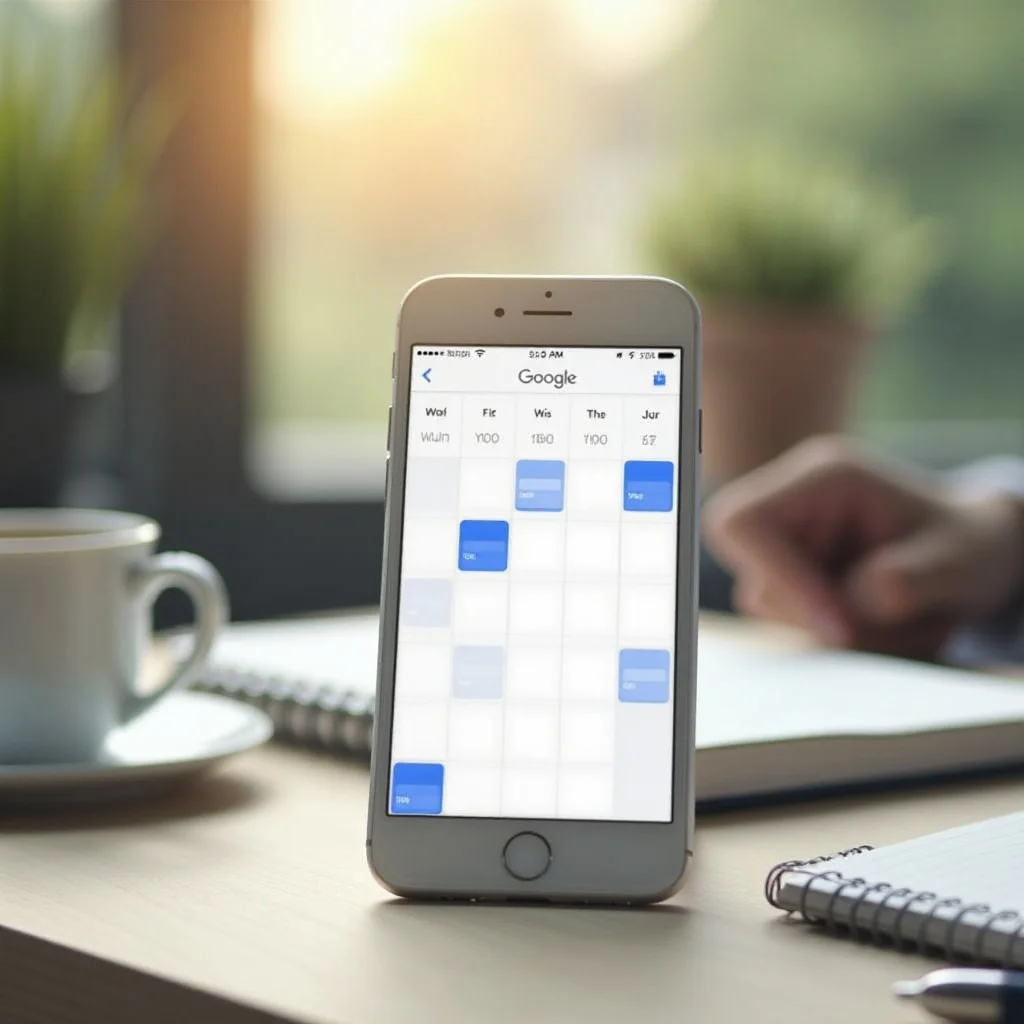
Method 2: Use the Google Calendar App (Recommended)
For a more tailored experience, you might prefer using the Google Calendar app instead of the iPhone Calendar app. Here's how you can sync it with your iPhone:
- Download the Google Calendar app from the App Store.
- Open the app and sign in with your Google account.
- Once signed in, your Google Calendar events will automatically sync with the app.
- You can then access your events, create new ones, and receive notifications directly in the Google Calendar app.
This method gives you access to all of Google’s calendar features, including color coding, smart event suggestions, and Google Meet integration.
Troubleshooting Common Issues When Syncing Google Calendar with iPhone
Syncing issues can sometimes arise, but don’t worry — they’re usually easy to fix. Here are a few common problems and how to solve them:
Issue 1: Google Calendar Not Showing Up on iPhone
If your Google Calendar isn’t showing up on your iPhone, it could be due to a syncing issue.
Solution:
- Open Settings and go to Calendar > Accounts.
- Tap your Google account and make sure Calendars is toggled on.
- If that doesn't work, try removing your Google account and adding it again following the same steps.
Issue 2: Calendar Events Aren’t Updating
If events aren’t updating, it may be a syncing delay or a problem with your internet connection.
Solution:
- Ensure your internet connection is working properly.
- Go to Settings > Calendar > Accounts, select your Google account, and tap Fetch New Data.
- Set the option to Push to receive real-time updates for new events.
Issue 3: iPhone Calendar Showing Multiple Entries for the Same Event
This happens when you have duplicate events in both the Google Calendar and iPhone Calendar apps.
Solution:
- Open Settings on your iPhone, then go to Calendar > Accounts.
- Check if you have multiple accounts syncing the same calendar.
- Remove any duplicates or unnecessary accounts to avoid syncing issues.
Issue 4: Missing Google Calendar Events
If you can’t find events from Google Calendar on your iPhone, the sync might not have completed properly.
Solution:
- Make sure your Google account is properly synced by going to Settings > Calendar > Accounts.
- If necessary, open the Google Calendar app and refresh the event list.
- Check if any filters are hiding specific events in the Google Calendar app.

Tips for Syncing Google Calendar with iPhone Calendar Properly
To ensure smooth syncing between Google Calendar and iPhone, here are some useful tips:
- Use the Google Calendar App for Full Functionality: While the default iPhone Calendar app works well, the Google Calendar app offers more features, such as event color coding and seamless integration with other Google services like Google Meet.
- Check Sync Settings Regularly: If you experience any issues, double-check your sync settings under Settings > Calendar > Accounts to make sure everything is enabled.
- Enable Push Notifications: To stay updated on upcoming events, make sure to enable push notifications for both the iPhone Calendar and Google Calendar apps.
- Clear Cache and Re-sync if Needed: If your events aren't syncing properly, try clearing the app cache (for Google Calendar) or re-syncing your calendars.
- Keep Your Software Updated: Ensure that both your iPhone’s iOS and the Google Calendar app are up to date. Software updates fix bugs and improve syncing functionality.
Following these tips will help ensure a seamless syncing experience and keep your calendar events up-to-date across all devices.
Conclusion
Syncing your Google Calendar with your iPhone is a great way to keep your schedule organized and accessible at all times. Whether you choose to use the default iPhone Calendar app or the Google Calendar app, both methods provide a simple and efficient way to manage your events. By following the troubleshooting tips and syncing strategies, you'll never miss an appointment or event again.
FAQs on Syncing Google Calendar with iPhone
Can I sync my Google Calendar with multiple Apple devices?
Yes, you can sync your Google Calendar across all your Apple devices, such as iPhones, iPads, and Macs. Just add your Google account to each device and enable the Calendars sync option.
Do I need the Google Calendar app to sync with iPhone?
No, you don’t need the Google Calendar app to sync Google Calendar with your iPhone. You can use the native iPhone Calendar app by adding your Google account under Settings > Calendar > Accounts.
How do I mirror my iPhone calendar to Google Calendar?
To mirror your iPhone calendar to Google Calendar, simply add your Google account under Settings > Calendar > Accounts and toggle Calendars on. This will sync your iPhone calendar with Google Calendar.
Why isn't my Google Calendar syncing with my phone?
If your Google Calendar isn’t syncing, check the sync settings under Settings > Calendar > Accounts. Make sure Calendars is turned on. Also, check your internet connection and refresh the Google Calendar app.